How to Add Subtitles to a Video Automatically: Free Methods and Submagic
Add subtitles to a video automatically with free YouTube Studio or Clipchamp captions, or Submagic animated captions: steps, pricing and length limits.
Published . 10 min read. Based on official sources, checked on the update date; every price links to its source. Our method.
Contents
To add subtitles to a video automatically, pick the tool by where the video will be published: YouTube Studio for videos on YouTube, Clipchamp for free captions burned into the picture, and Submagic for animated captions on short videos. YouTube Studio (YouTube channel) and Clipchamp (personal Microsoft account) are free. Submagic has a 3-video trial with a watermark, then plans from $19 a month ($12 a month billed annually), per its pricing page, checked Oct. 7, 2026.
No transcripts were measured for this guide: steps and button names come from the vendors’ help centers, checked Oct. 7, 2026.
In the US, captions usually means same-language text and subtitles a translation; these tools mix the two, and YouTube Studio files everything under Subtitles.
Which Method Fits Your Video?
| Your video | Method | What you get | Cost |
|---|---|---|---|
| Published on YouTube (long-form or Shorts) | YouTube Studio | A caption track viewers can turn on, editable and downloadable | Free |
| Published elsewhere (TikTok, Reels, LinkedIn, your site) with text in the picture | Clipchamp | Captions burned in on export, up to 1080p, plus an .SRT file | Free with a Microsoft account |
| Short clip (2 or 5 minutes max depending on plan) with animated captions, emojis, zooms | Submagic | An exported video with styled, burned-in captions | 3-video trial with watermark, then from $19/month |
| Video for viewers who speak another language | Dubbing or translated subtitles | See our guide to translating a video in your own voice | Depends on the tool |
Free Method: YouTube Studio Automatic Captions
YouTube automatically captions long-form videos and Shorts in 67 languages, including English and Spanish (help page, counted Oct. 7, 2026). They form a separate track, so they mostly help a video hosted on YouTube. In English, expressive captions also show intense speech in all caps, plus sounds such as sighs and gasps.
Review and Fix Captions in YouTube Studio
According to YouTube’s Edit or remove captions article, checked Oct. 7, 2026:
- Sign in to YouTube Studio.
- From the left menu, select Subtitles, then click the video.
- In the “Subtitles” column, select Edit for the language you want to fix.
- For automatic captions, select Duplicate and edit, then Continue: your edits become a new caption track.
- Click inside a line to fix the text. Adjust timing in the two timestamp boxes beside it (select Edit timings if they don’t show).
- Click Publish.
To get the text out: Options, then Download subtitles, from the language’s editor.
When YouTube Doesn’t Generate Captions
According to YouTube’s help (checked Oct. 7, 2026), they may be missing when:
- complex audio is still processing;
- the language isn’t supported;
- the video is too long (no limit is published);
- sound is poor or speech isn’t recognized;
- the video starts with a long silence;
- people talk over each other, or languages are mixed.
Live automatic captions are English-only, at normal latency, and still rolling out to channels with more than 1,000 subscribers.
Free Method: Burn In Captions With Clipchamp
Clipchamp, Microsoft’s video editor, includes automatic captions (“AI subtitles”) in its free plan, which exports up to 1080p with no watermark using a personal Microsoft account (Clipchamp plans, checked Oct. 7, 2026). One catch: a video that uses premium stock assets can’t be exported on the free plan.
Steps from Microsoft’s autocaptions guide (personal version, checked Oct. 7, 2026):
- Import your video from My media, then drag it onto the timeline.
- Click the captions icon in the video preview, or the captions tab in the property panel, to turn on autocaptions.
- Pick the transcription language (one per video) and, if you want, the offensive-language filter, then click the transcribe media button.
- Fix the transcript in the captions tab: double-click a word to rewrite it, or delete it.
- Select the caption text in the preview to change the font, color and preset position in the text tab. Microsoft recommends a color that contrasts with the background, with white preferred for accessibility.
- Export the video with the captions burned in. The download captions button also saves an .SRT file.
Why not CapCut? A CapCut marketing page calls its automatic subtitles free, but its help center puts auto captions in CapCut Pro (Standard vs. Pro, dated Apr. 7, 2026, checked Oct. 7, 2026). With no free option confirmed, CapCut is left out.
AI Caption Generator for Animated Captions: Submagic Step by Step
Submagic, made by a Paris-based company, dresses up short videos you’ve already filmed. The trial, with no credit card required per the pricing page, starts on Submagic’s site commission.
Before you upload, check the file: MP4 or MOV, H.264 or HEVC codec, a whole-number frame rate (30 or 60 fps rather than 29.97), 3,000 MB at most, and a length your plan allows (help articles on supported formats and size and length limits, updated Sept. 30, 2026).
Steps and labels from the official step-by-step guide (updated Sept. 30, 2026, checked Oct. 7, 2026):
- On your dashboard, click Generate Captions in the left column, then Generate AI Captions.
- Upload your video by clicking or dragging and dropping it.
- Select the video’s language and the number of speakers, so captions adapt to each one. Click Generate Captions: the guide says processing takes about 40 seconds.
- Pick a caption template, then adjust color, font, weight, size or emojis. Custom templates are limited to the Pro and Business plans.
- Click Edit Captions to fix transcription errors, move or resize captions, highlight words, and add or remove emojis.
- Click Export and pick the quality: 1080p, 2K or 4K at 30 or 60 fps, depending on your plan.
Submagic’s language count varies by page: “48+” (languages help article), over 100 (announcement of 52 new languages), “50+” and 123 (languages page, English and Spanish included), checked Oct. 7, 2026; for a less common language, test it during the trial.

Tutorial published May 4, 2026, by Submagic Academy, the channel embedded in the official guide (3:58). Chapters: upload (0:16), styling (1:09), editing (1:47), export (3:35). A vendor demo, not a Génie Artificiel test.
How Much Does Submagic Cost for Your Video Length?
The limit that matters is the length of each video, on upload and export (plan limits and pricing page, checked Oct. 7, 2026).
| Plan | Monthly | Billed annually (per month) | Videos a month | Max length per video |
|---|---|---|---|---|
| Free trial | $0 | – | 3 short videos, watermarked | Not stated |
| Starter | $19 | $12 | 15 | 2 minutes |
| Pro | $39 | $23 | 40 | 5 minutes |
| Business | $69 | $41 | Up to 100 | 30 minutes |
Prices are per member, in US dollars exclusive of taxes for customers outside the EU (terms of use); taxes appear in the order summary before you pay.
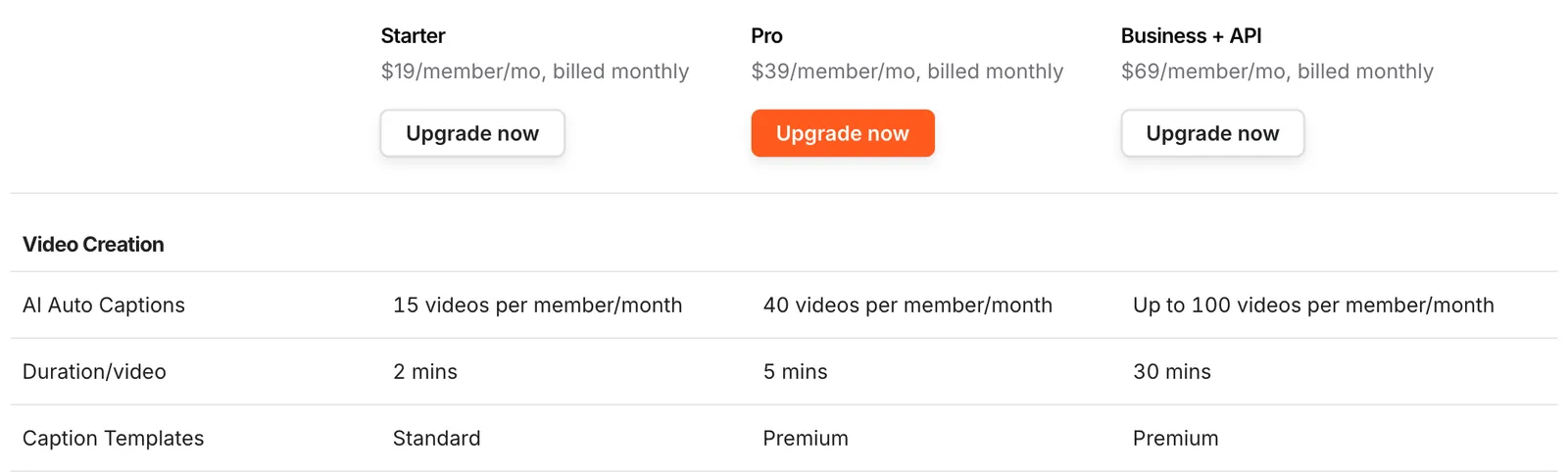
Top of Submagic’s pricing table, billed monthly: the “Duration/video” row decides your plan (screenshot taken Oct. 7, 2026).
Worked Example: A 12-Minute Video
Assumption, implied by the pricing page (45 credits = 15 videos on Starter): each uploaded file counts as one video. These are calculations, not measurements.
- Starter: rejected in one piece (12 minutes > 2); split into 12 ÷ 2 = 6 pieces, it uses 6 of 15 monthly videos and leaves six files to stitch together.
- Pro: also rejected (12 > 5); you need 3 pieces (5 + 5 + 2 minutes), or 3 of 40 monthly videos.
- Business: accepted in one go (1 of 100 monthly videos): $69 for one month, or $41 a month billed annually, so 41 × 12 = $492 for the year, before any tax.
- Trial: length not published; the help center only says “short videos” (checked Oct. 7, 2026).
For a single 12-minute YouTube video, YouTube Studio or Clipchamp does the job; Business makes sense if you often publish long videos with animated captions. Credits, Magic Clips, the API and refunds: see our Submagic page.
Burned-In Captions or an SRT File?
Burned-in (open) captions show everywhere, even with the sound off, but are locked after export, with one video file per language. A caption file (closed captions, such as .srt) stays separate and viewers turn it on: you can fix it without re-exporting and add one per language, if the platform accepts it.
| Tool | Burned-in captions | Caption file |
|---|---|---|
| YouTube Studio | No: separate track | Downloadable; format not stated in the help |
| Clipchamp | Yes, on export | .SRT file documented |
| Submagic | Yes, on export | Captions-only export on a green or blue background (help, updated Feb. 22, 2025); .srt not documented in the help |
Sources checked Oct. 7, 2026.
Common Mistakes
Publishing Without Checking Names and Numbers
At the correction step, check brand names, people’s names, numbers and negatives first. On Submagic, the custom vocabulary feature, which locks in those terms, only appears on the Business plan (comparison table).
Picking the Wrong Language
YouTube only captions a video’s default language (even with several audio tracks), Clipchamp one language per video, and Submagic asks for the language at upload: a bilingual video will come out partly wrong. Split the sections or fix them by hand.
Forgetting the Vertical Format
Choose the final format (9:16 for TikTok, Reels and Shorts) before you position captions. Submagic offers 9:16, 16:9, 1:1 and 4:5 below the preview (aspect ratio help, updated Sept. 30, 2026).
Hiding Text Under the App’s Interface
On TikTok, Reels and Shorts, post captions, account names and buttons cover the video: move captions toward the middle. In Submagic, the Position Y slider (STYLE section) moves all captions up or down, not sideways (caption position help).
Uploading a Video Without Clear Speech
No speech, no captions: Submagic says so in its help, Clipchamp requires audio with voice, and YouTube lists poor sound among the causes of failures.
Alternatives
- OpusClip: turn a long video (podcast, interview, webinar) into vertical clips that are already captioned and reframed.
- SendShort: automatic captions from the Starter plan, long-video clipping from the Professional plan; no free trial (pricing page, checked Oct. 7, 2026).
More tools for clipping and captioning short videos: our AI video tools page.
FAQ
How Do I Add Automatic Captions for Free?
Use YouTube Studio for a video on YouTube (then review the captions), or Clipchamp’s free plan to burn text into the picture: automatic captions and 1080p exports with no watermark (checked Oct. 7, 2026).
Are YouTube’s Automatic Captions Accurate?
YouTube doesn’t publish an accuracy rate and warns that quality varies: mispronunciations, accents, dialects and background noise cause errors. It tells creators to review and fix every automatic track in YouTube Studio.
Can I Get an SRT File?
Yes with Clipchamp, whose help documents the download captions button and its .SRT file. YouTube Studio lets you download the track but doesn’t state the format. For Submagic, an .srt export only appears on a marketing page, not in the help center: confirm it during the trial (checked Oct. 7, 2026).
Is Submagic Free?
No. The free trial covers 3 short videos with a watermark; plans then start at $19 a month, or $12 a month billed annually, for videos up to 2 minutes long.
Which Submagic Plan Handles Videos Over 5 Minutes?
Business, the only plan with a listed price that accepts videos up to 30 minutes (a custom plan quoted by sales sets its own length per video): $69 a month, or $41 a month billed annually (checked Oct. 7, 2026). Starter and Pro make you split the video into 2- or 5-minute pieces.